

Prerequisites: You need a functioning Qovery cluster before starting this tutorial.
This tutorial takes approximately 5 minutes to complete.
Installation
This guide targets chart version 3.1.8. Steps may differ for other versions — check the official Kubecost docs for the latest.
Step 1: Add the Kubecost Helm Repository
1
Add Helm Repository
In Qovery Console:
- Go to Settings → Helm Repositories
- Click Add Repository
- Configure:
- Repository name:
Kubecost - Kind:
HTTPS - Repository URL:
https://kubecost.github.io/kubecost
- Repository name:
Step 2: Create the Kubecost Helm Service
1
Create Helm Service
In your environment:
- Click Create → Helm Chart
- Configure:
- Service name:
kubecost - Helm source:
Helm repository - Repository:
Kubecost - Chart name:
kubecost - Version:
3.1.8(or latest from Kubecost) - Allow cluster-wide resources: ✔️
- Service name:
Step 3: Configure Variables and Values Override
1
Add optional variables
Open the Kubecost service overview and go to the Variables section.Add these variables as needed:
See Environment Variables for more details on managing variables in Qovery.
2
Configure Values Override
In the Override as file section of your Helm service, add the following configuration:If you have a Kubecost token, add it to the override:
How
qovery.env.* works: At deploy time, Qovery replaces qovery.env.KUBECOST_TOKEN with the actual value of the KUBECOST_TOKEN variable. The real value never appears in the Qovery UI — it is only injected at Helm install time. See Environment Variables in Helm Values for more details.Step 4: Deploy the Chart
1
Deploy
- Click the Deploy button
- Follow the deployment logs
- Verify Kubecost pods are running
Step 5: Access Kubecost via Port Forward
Kubecost does not provide authentication by default, so exposing it publicly would leave your cost data accessible to anyone. Usekubectl port-forward instead to access the dashboard securely from your local machine.
1
Connect to your cluster
Download your cluster’s kubeconfig from the Qovery Console: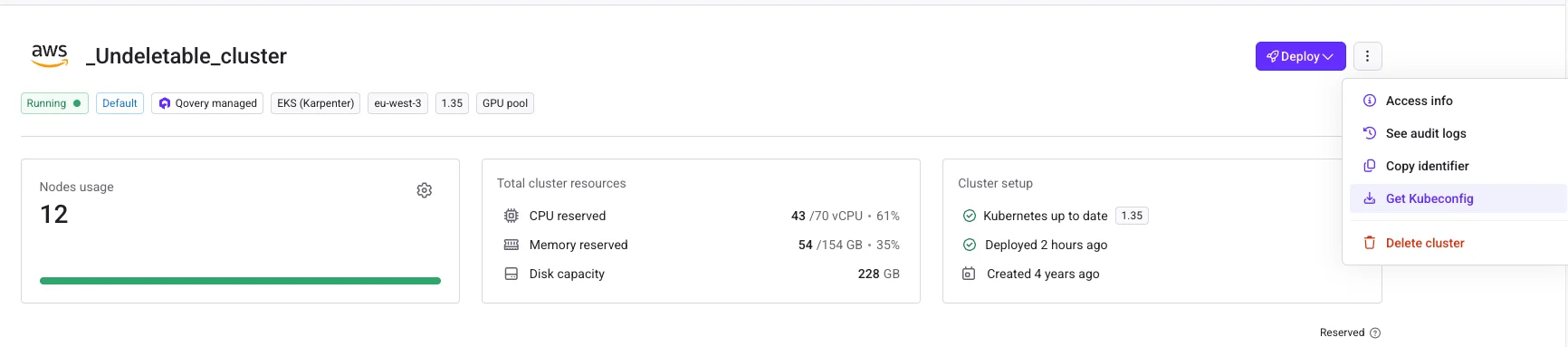
- Go to Organization → Clusters
- Click on your cluster
- Open the Actions menu and select Get Kubeconfig
kubectl to use it:2
Get your environment namespace
In Qovery Console, go to your environment and find the Kubernetes namespace in the environment details. It follows the pattern
z<env-id-prefix>-<env-name>.Alternatively, list namespaces on your cluster:3
Find the Kubecost service name
List services in your namespace to find the Kubecost dashboard service:
4
Forward the Kubecost port
Run the following command, replacing Then open your browser at http://localhost:9090.
<namespace> and <service-name> with the values from the previous steps:Conclusion
You’ve successfully deployed Kubecost on your Qovery cluster. You can now access the Kubecost dashboard to monitor your Kubernetes costs and get optimization recommendations. Kubecost is now part of IBM, which is why the official documentation is hosted on IBM’s website. To learn more about using Kubecost, check out their Getting Started guide.Next Steps
Kubecost Documentation
Learn more about Kubecost features
Optimize
Optimization strategies with Qovery
Qovery Observe
Built-in observability
Datadog
Advanced monitoring with Datadog